PHOTO PRIVACY GUIDE
How to remove GPS location from a photo before sharing
Your image file may contain a location even when no map pin is visible in the picture. Check the file you plan to share, make a cleaned copy, and verify both its metadata and appearance.
The short answer
Open your JPG, PNG, or WebP in the PixGauge metadata viewer. If it reports GPS or other removable metadata, prepare and download a cleaned copy. Open that downloaded copy again to check its fields, then inspect how the photo looks before sharing. Processing happens locally in your browser.
What is GPS photo metadata?
Some phones and cameras save location coordinates inside a photo file, along with details such as capture time, device model, or editing software. The GPS information is separate from the visible scene; a viewer may show it in an information panel or on a map. Apple’s location-metadata guide explains how coordinates can be embedded in photos and potentially available to people who receive them.
Not every photo has coordinates. An app may omit or remove them, and a downloaded or converted image may differ from the original. Check the exact file you intend to send rather than assuming that all copies have the same metadata.
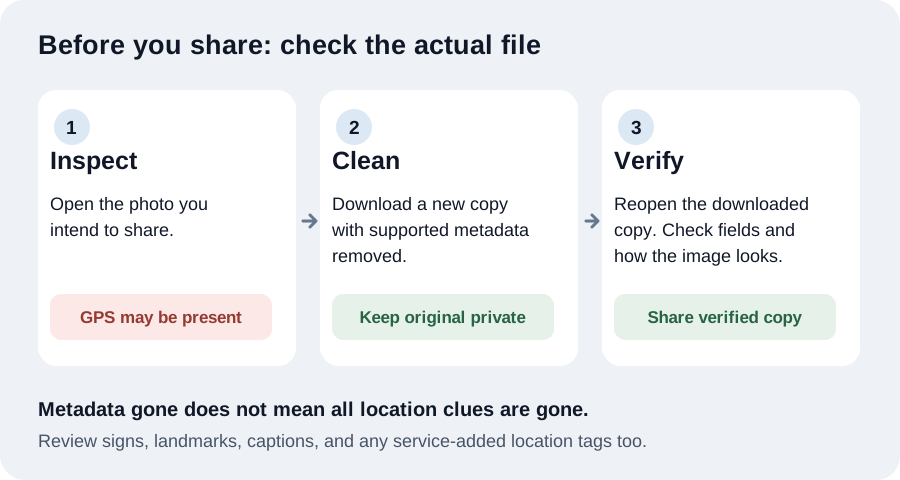
Inspect, clean, and verify the file
- Inspect. Choose the JPG, PNG, or WebP file in the metadata viewer and remover. Review the location warning and listed fields. GPS coordinates are especially sensitive, but time, device, author, and other fields may also be worth removing.
- Clean. Select Prepare cleaned copy, then download the result. Share the downloaded file, not the original. PixGauge removes supported EXIF/GPS, XMP, IPTC, comment, and text metadata blocks while preserving compressed image data and color profiles.
- Verify. Load the downloaded copy back into the viewer. Check that the GPS and other supported removable fields are no longer reported. Open the copy in an ordinary image viewer too, especially if it came from a phone camera.
If PixGauge reports no supported removable fields, that is not proof the image is anonymous. It only means this tool did not find metadata it supports in that file. The viewer accepts JPG, PNG, and WebP; it does not process every image or video format.
Why check how the cleaned photo looks?
PixGauge copies the existing compressed image data rather than re-encoding it, so cleaning does not add compression loss. However, some photos rely on an EXIF orientation tag to tell software which way to rotate or mirror the stored pixels. Removing that tag can change how the cleaned copy displays in some viewers—even though its compressed pixels are unchanged.
If the downloaded copy looks sideways or mirrored, rotate or re-export a working copy with an image editor, then inspect the final exported file again for metadata. Keep your original privately until you are satisfied with the result.
Metadata removal is only one privacy step
- Visible clues remain. Signs, landmarks, street numbers, faces, reflections, screens, or documents in the scene can still identify a place or person.
- Services can add context. A social post, message, filename, caption, account profile, or geotag can disclose location separately from the image file. Some services also change or add metadata after upload.
- Previously shared copies remain. Cleaning a new copy cannot remove location data from an original file you already sent or posted.
- Unsupported data may remain. PixGauge checks and removes supported metadata structures, not every conceivable proprietary field or information encoded in the pixels.
For future iPhone photos, Apple also documents how to turn off location sharing for a photo and how to stop Camera from collecting location metadata. Those settings are separate from cleaning a file you already have. See Apple’s instructions.
CHECK BEFORE YOU SHARE
See what this file reveals
Inspect a JPG, PNG, or WebP locally, download a cleaned copy when supported metadata is present, and reopen the result to verify it.